Unlock Once. Then Four Steps.
A one-time setup teaches your AI the CodeDrop format. After that, every project follows the same loop.

Click Unlock AI and paste the primer into your AI chat (using your own ChatGPT, Claude, Gemini, or other account). This one-time handshake teaches the AI the CodeDrop response format. You only do this once per chat session — then repeat the four steps below for every project.

Screen Guide mode shows numbered badges over every button and field. Hover any badge to see what it does, then use context-aware FAQ help for deeper walkthroughs. Press Alt+/ again to hide.
Load Your Project
Load a ZIP or select a folder. CodeDrop scans your project and builds a file map with smart exclusions.
Review & Configure
Review what's included. Adjust exclusions. Choose your AI preset. CodeDrop learns your preferences — the more you use it, the smarter it gets.
Transfer to AI
Encode your project into a text-only payload with protocol headers. Large projects get sharded with hash validation.
Extract & Merge
Paste the AI response back. CodeDrop validates the changes and creates a ZIP with modified files in correct structure. Unzip over your project to apply. Most AIs automatically respond in the same format you sent.
Three Instruments. One Decision.
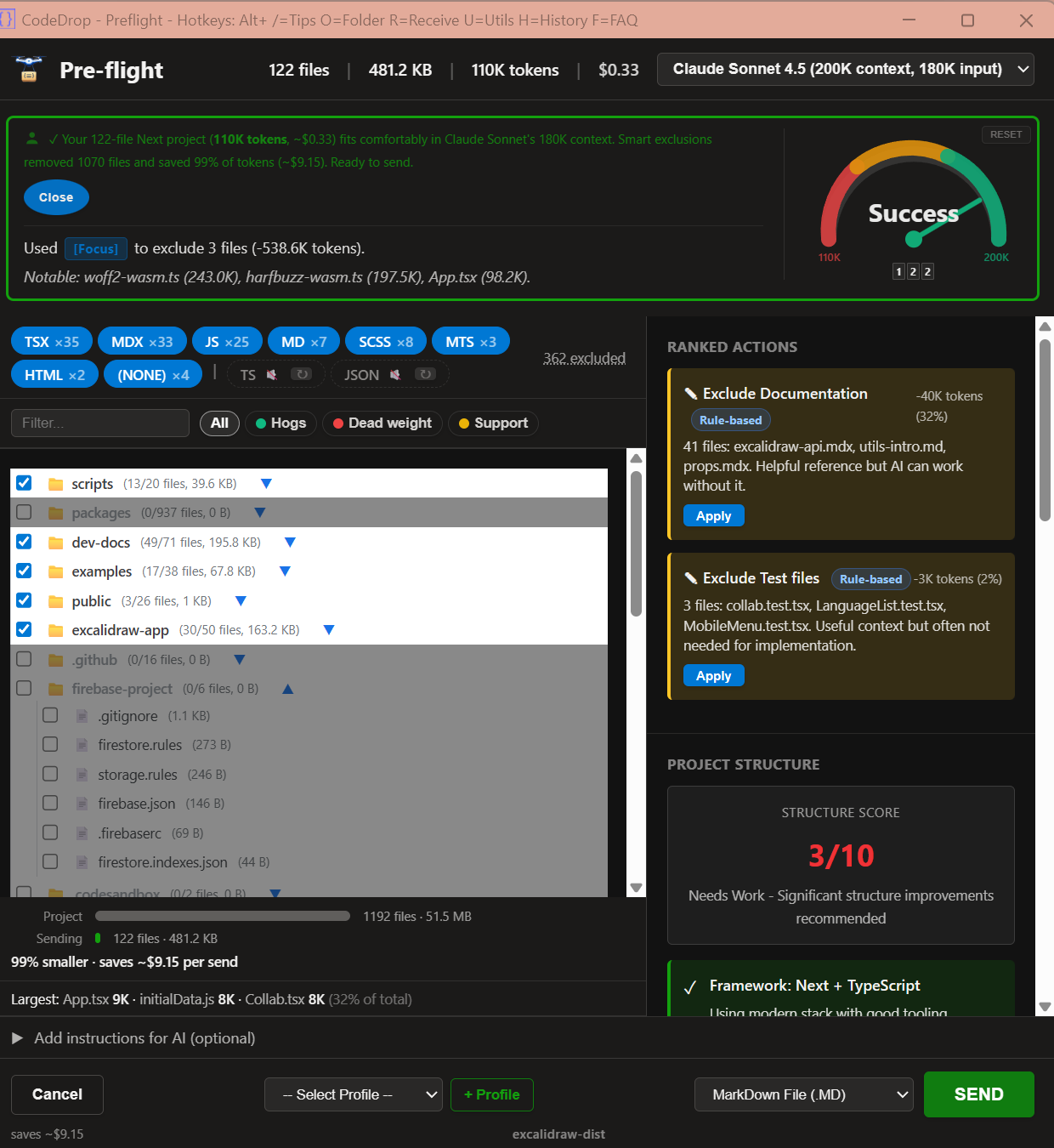
Step 02 is where the real work happens. Three instruments give you real-time feedback as you shape your project to fit.
The Narrator
Analyzes your project and generates a plain-language diagnosis. Not a generic warning — a specific explanation of what's too large, which files are responsible, and ranked actions to fix it. Updates in real time as you optimize.
The Barometer
A live analog gauge measuring context pressure. Red zone, yellow zone, green zone — the needle sweeps toward success as you exclude files and apply solutions. Switch AI models and watch the green zone threshold shift instantly.
The Chronicle
Tracks every optimization and builds a running summary. Which files were excluded, how many tokens saved, which large files made the biggest difference. After significant changes, suggests saving your decisions as a reusable profile.
History Overlay
Inspect send and receive details per project, including transfer metadata and outcomes.
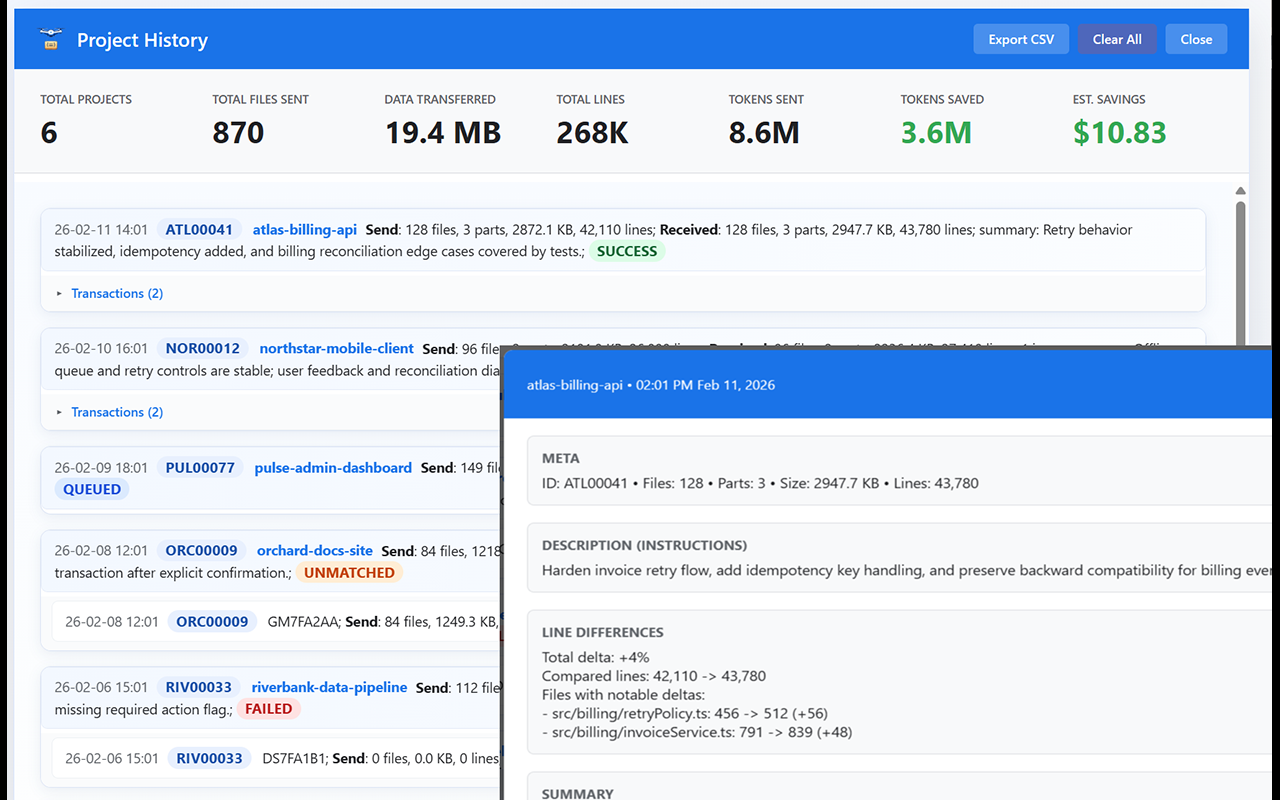
Trace every project sent and AI result received.
Need help? Join the CodeDrop Discord community for setup guidance and troubleshooting.
Native Integration: Skills & Gems
Install once. Works everywhere. No manual setup per chat. Now supporting Claude Skills, ChatGPT Skills, and Gemini Gems — all three major AI platforms.
Claude & ChatGPT Skills
For Claude Code and ChatGPT. Same skill file works for both — install once, and the AI automatically recognizes .codedrop files in all chats.
Gemini Gems
For Google Gemini (web and API). Create a Gem once with the CodeDrop protocol, and it works across all your Gemini conversations.